Programs
2024-01-14When searching online for programs that do a certain thing, the majority of the links on the first page of the search results look like “23 Best Free certain thing Programs for [Insert Current Year]” which contain at least 1 paid option, despite having “free” in the page title, and overall contain little information of value. I hope this list helps find more programs that just do the one task they’re made to do, don’t collect unnecessary data without your permission and don’t try to slow down the system.
Since first writing this, I have found the website https://switching.software/, which I mostly agree with. This page will now focus on documenting programs I actively use, or niche programs which I don’t actively use, but find very useful. Programs under each heading are sorted by my order of preference
Text Editing
Just about any linux text editor with a GUI will do. Here are some editors I’ve used more often than others:
mousepad
(linux-only)
https://gitlab.xfce.org/apps/mousepad
- The text editor for the XFCE desktop environment.
See also, xed (Linux Mint), leafpad (Raspberry Pi’s).
Document writing
For most documents I write, I use markdown, which is a language for formatting text documents. This makes storing and searching documents easier, as each document is just a folder with a text file and a collection of images. The nice thing about markdown is that you don’t need a separate program to open documents.
There are quite a few websites that explain markdown in more detail. Here are link to a few of them, sorted by lengthiness:
- https://commonmark.org/
- https://www.markdowntutorial.com/
- https://www.markdownguide.org/getting-started/
When I’m not using a Text Editor to write markdown, I use one of the editors below.
FocusWriter
https://gottcode.org/focuswriter/
A simple, distraction-free document writer. It can export to odt, rtf, but not markdown.
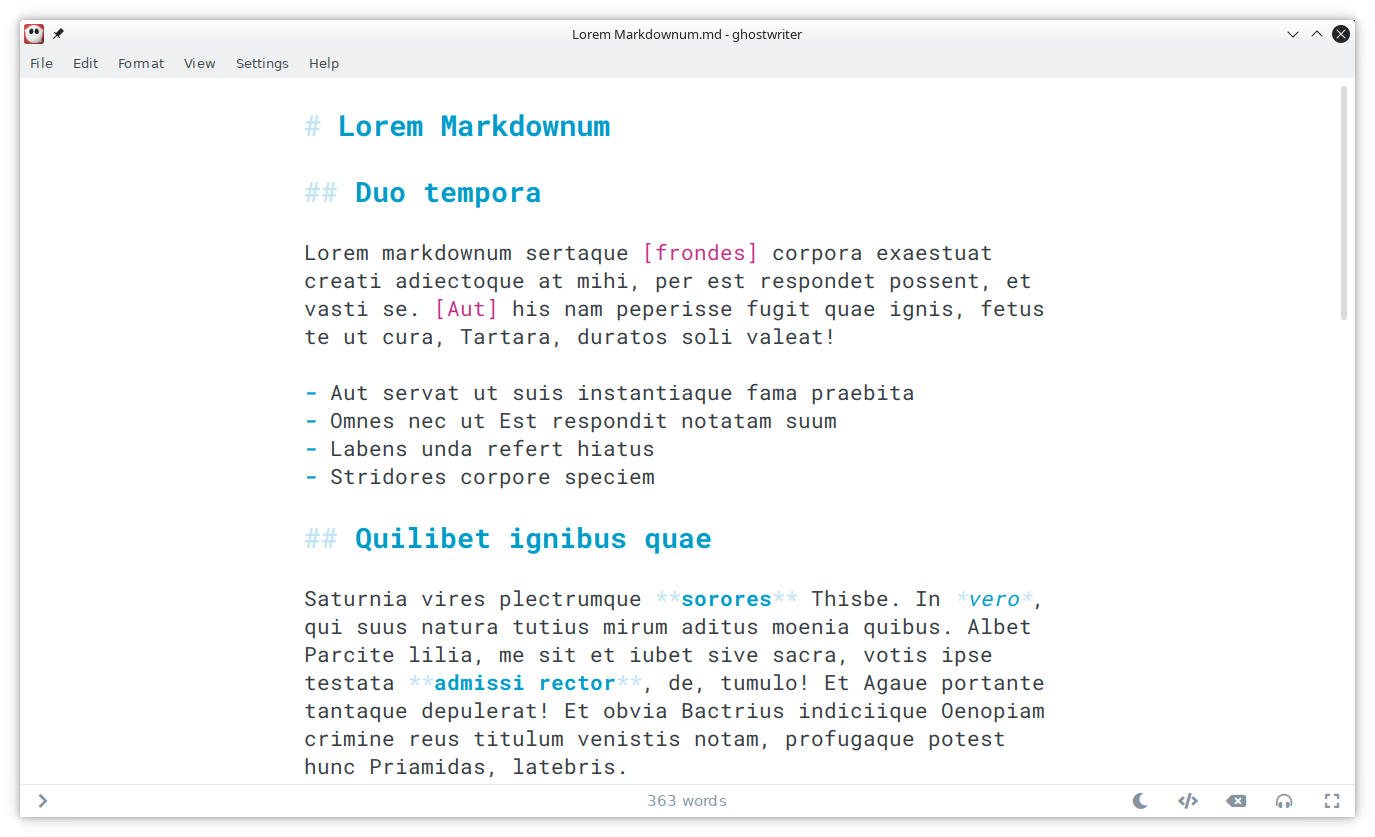
Ghostwriter
https://kde.github.io/ghostwriter/
It’s fast, it’s simple, and it supports drag-and-drop for images. One annoyance I have with it is that there is no inline display of images.
Abricotine
https://github.com/developit/Abricotine
I do not actively use it anymore. Abricotine can show inline images as well as LaTeX maths equations, though it takes a while to open large documents.
MarkText
I do not actively use it anymore. MarkText is another good editor, but takes quite a while to start up. It also has a vertical File, Edit, View menu, making it pretty annoying to use.
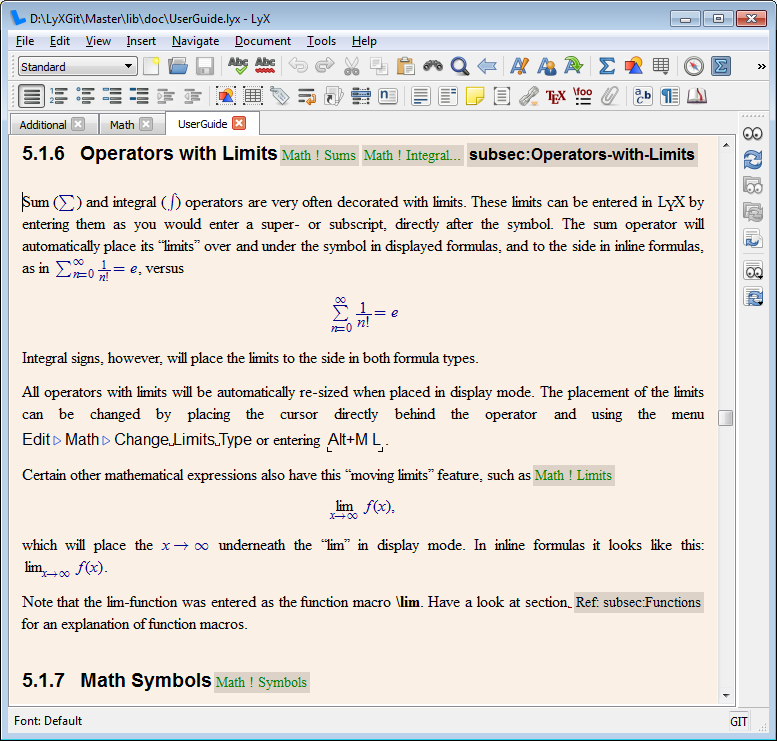
LyX
For scientific/mathematic papers I use LyX which provides a very nice GUI for LaTeX. Inserting images as figures takes a few more steps than I would like though.
Programming
Half the time I’m still editing code in a Text Editor.
Geany
A code editor with syntax highlighting, Ctrl+click jump to definition and Ctrl+Shift+F for Search in Files. That’s all I really need from a code editor.
Zed
Use fairly often for large projects. A quite simple code editor, which still has a surprising number of features I need. All of the settings are stored as json, and there is no GUI for configuring them, unfortunately. Has an annoying habit of downloading linters, parsers and prettifiers from the web, despite disabling most of the related settings.
(microsoft) Visual Studio Code/VSCodium
I have not used VSCodium for quite a while, preferring Zed over it. Falls under the WOW, it’s such a nice editor, sooo many features, and lightning-fast-until-it’s-not category.
File Management
Thunar
(linux-only)
https://gitlab.xfce.org/xfce/thunar
Use daily. A simple file manager from the Xfce desktop. Provides a menu for configuring “Custom actions” which can be added to the right-click menu, making it very easy to add custom features.
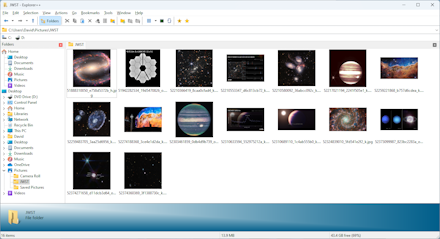
Explorer++
(windows)
A simple file manager for windows.
Disk Space Usage
Filelight
https://apps.kde.org/filelight/
Program for showing disk usage in a pie chart.

Screenshotting
xfce4-screenshot
(linux-only)
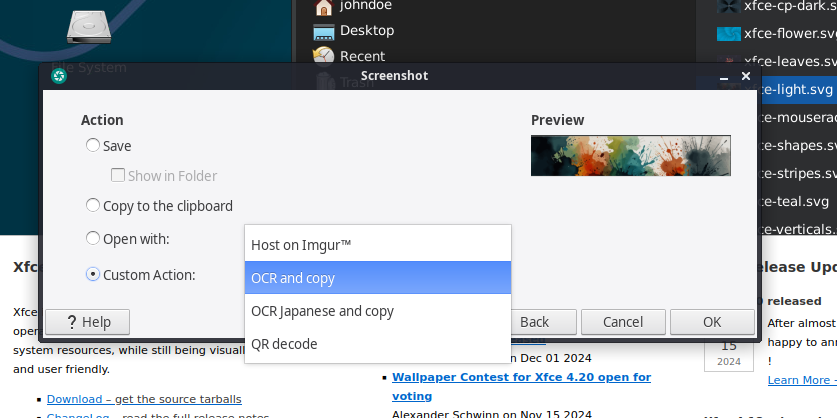
The default screenshot tool that comes with xfce. Wins over many others due to its ‘Custom Actions’ feature, allowing for quick access to features like optical character recognition.
Flameshot
https://flameshot.org/#download
Use sometimes when I require annotating screenshots.

PDF Viewing
Okular
There’s an okular install lying around on my windows machine. I still have no idea where I got the installer I used for it. When I look at the website, all I find are links to the nightly builds and the microsoft store.
Atril
(linux-only)
The document viewer from the MATE desktop environment. I have not used it in a while.
- https://github.com/mate-desktop/atril
- https://wiki.mate-desktop.org/mate-desktop/applications/atril/
Sumatra
My first choice when reading PDFs on windows. Where adobe’s PDF reader or microsoft edge’s PDF reader displayed a loading circle for at least a minute, and then froze, Sumatra PDF opened the file in a few seconds.
PDF Editing
PDFs aren’t a format that’s really made for editing. PDF stands for Portable Document Format, and it is (theoretically) designed so that the same PDF document looks the same on different computers, without text alignment issues, missing fonts, or stretched images. Some proprietary PDF editors/tools automatically convert the PDF to a different format like .odt or .docx, or magically allow you to edit a single paragraph of text even though inside the PDF they’re stored as individual lines. It would be great if these methods were better documented documented at all, but for the time being, the PDF editors easily available for linux have fairly basic editing functionality in comparison.
Scribus
Scribus has a lot of options for editing PDF’s, comparable to the options GIMP has for image editing. If you need to tweak the colour of something in a PDF, or remove a watermark, you can do it with Scribus. As with GIMP, the hard part is finding out how.
LibreOffice Draw
It can import PDFs, but usually quite a bit of the formatting is lost. Every text field, rectangle, and in some cases line, is imported as a separate object, making the imported document quite annoying, if not impossible to work with.
Office Programs
Usually, when I open office programs it’s to be able to view files other people sent me.
OnlyOffice
Sometimes takes a bit to start up. For a program written mostly in HTML and JS, it is surprisingly fast. The user interface for creating graphs in spreadsheets is much more straight-forward and easier to configure than in LibreOffice Calc.
LibreOffice
LibreOffice is an alternative to microsoft office, though doesn’t correctly import all features of a document. There are also strange inconsistencies between different programs, like being able to select and drag multiple images in Impress(slideshows), but not in Writer.
Web Browsing
The Web consisted of plain HTML pages, then came Netscape Navigator and with its javascript. Nowdays, webpages with an article, ads, and a few videos refuse to load without javascript even though the same page could be created with <p>, <img> and <video> tags. Needless to say, the web is a mess, and keeping up with web standards is a practically impossible task. This list is not so much a list of the best browsers I’ve used, not even a list of the browsers which suck less, so much as the list of browsers which are bearable to use, and have (mostly) reasonable default settings.
Web Browsers
Librewolf
There is a fork(modified version) of firefox called librewolf which removes the tracking present in mozilla’s firefox, and disables features like pocket. The default settings are too strict for my liking so I usually change the following after a fresh install:
- Do not clear the history/website data/cache/cookies after closing the window
Firefox
A while back, I would have elected firefox as my browser of choice, it had a (relatively) simple user interface, and a relevant settings page where you could configure much more than you could with chromium or other browsers. However over time mozilla has repeatedly added un-needed features to the browser (slowly removing the options needed to remove them) and removed others for no apparent reason.
Midori
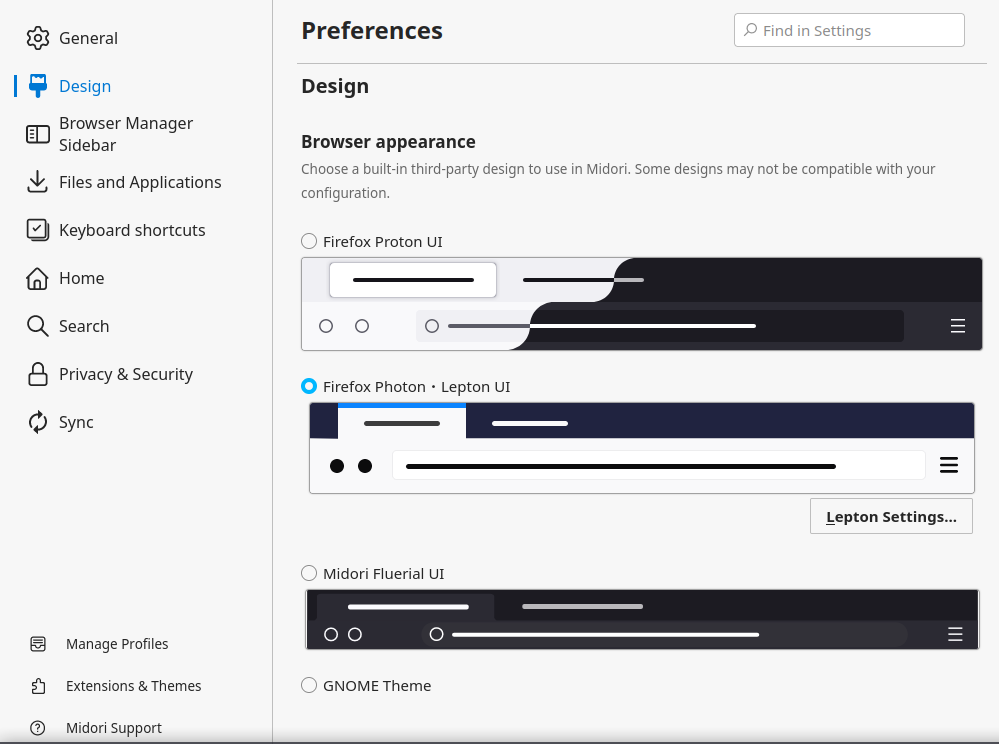
Midori is another fork of firefox which I tried. I was pleasantly surprised by the customisation options and better organised settings page. File handling behaviour is separated into its own section, there’s a Design section which provides settings to turn on/off various UI “improvements” mozilla has made to firefox, and in the design section there is an option to actually specify the theme of the UI.
Browser extensions
- SingleFile - for saving web pages into a single HTML file for offline viewing
- Stylish - for applying custom themes onto a page
- Tampermonkey - for applying userscripts
- ‘Search all Tabs’ firefox addon - Something which should be a base feature in firefox
- ‘Cookie Quick Manager’ firefox addon - Edit, delete and copy browser cookies. Something which should also be a default firefox feature
Ad blockers/quality of life improvements
- V3 addon/userscript - Restores the old youtube layout. https://vorapis.pages.dev/#/
- UBlock Origin - An efficient content blocker. Blocking ads is not its main purpose. However, since a lot of ads contain trackers, they are often blocked too.
- AdNauseum - A version of UBlock Origin which in addition to blocking ads, clicks on every single one.
- Ghostery - Tracker blocker. Last time I checked, no source code was available.
- Privacy Badger - Another tracker blocker.
Image Viewing
As with Text Editors, just about any will do.
Ristretto
(linux-only)
EoM (Eye of MATE) (linux-only)
Have not used for a while. Comes with the MATE desktop environment.
mvi
Have not used in a while. A collection of scripts allowing to use the mpv video player as an image viewer.
Art/Image Editing
GIMP
Use daily. The Swiss Army knife of image editing. It can do almost everything; the problem is finding out how. Some people love it, some people hate it, I used it for pixel art. When I need animated pixel art, I choose Pixelorama
Krita
https://krita.org/en/ https://invent.kde.org/graphics/krita
Use daily when I’m working on digital painting. For when I’ve tried to draw something in GIMP and it doesn’t look quite as good as it could be. Unlike GIMP, Krita is designed for digital painting/drawing.
Pixelorama
https://orama-interactive.itch.io/pixelorama
My go-to choice for pixel art and animation. A really nice tool for pixel art drawing and animation. I switch to it from GIMP when I realised I needed a live preview for my animations if I wanted them to look any good.
Photopea
Have not used much, but a good recommendation. A free in-browser image editor. No account required! Has many features commonly found in GIMP and photoshop.
BeeRef
Use daily when I need references. “A Simple Image Reference Viewer”. A program for creating collages of images for reference. Supports drag and drop from the file manager, pasting from clipboard, and even pasting in URLs of images.
PureRef
https://www.pureref.com/index.php
Have not used in a while. A program similar to BeeRef. It’s not often I find myself using closed-source programs, as I often find they’re of poor quality, and full of bugs. PureRef has been a delightful exception in the respect so far!
Audio Editing/Analysis
Tenacity (or any Audacity fork)
Have not used for a while as I do not do much audio trimming/editing. Initially started as a fork of audacity after some controversy in the original project.
Sonic Visualizer
A tool for transcribing musical notes from audio. When I can’t identify the note a specific song uses, I try and see if Sonic Visualizer can get it.
Music Composition
MidiEditor
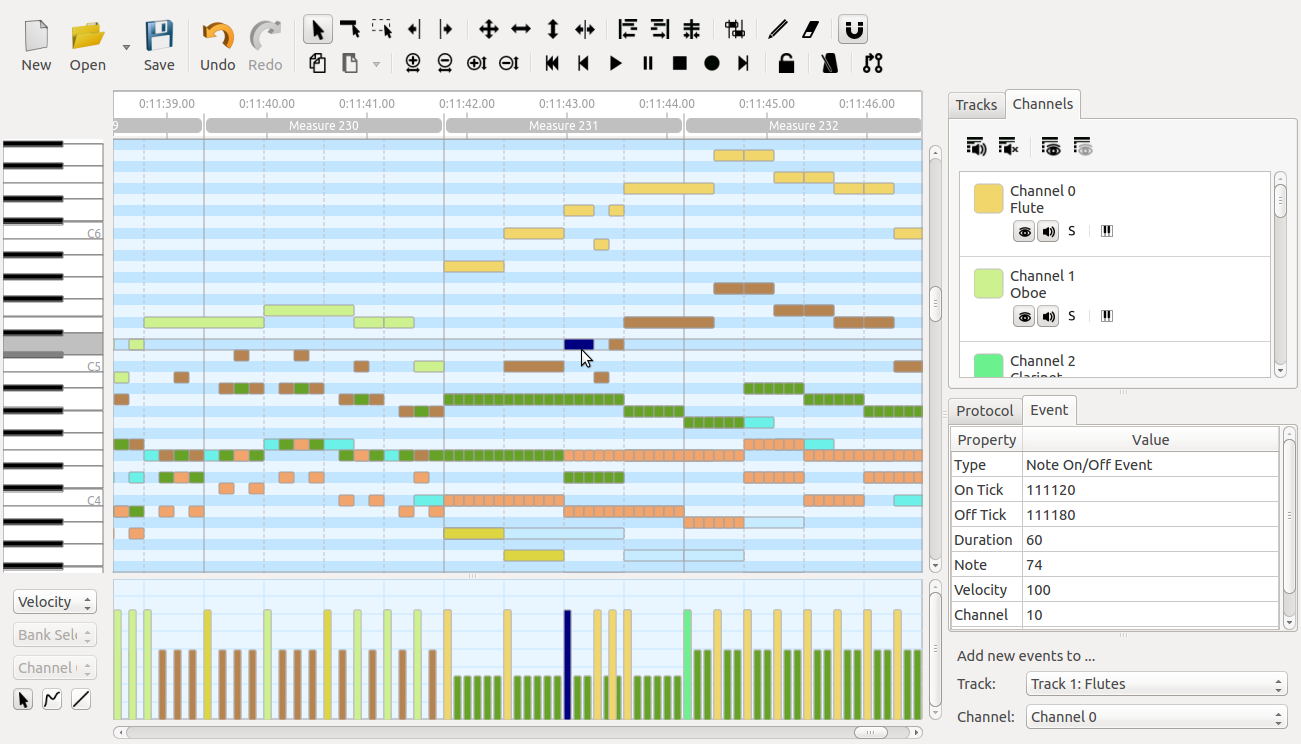
Use often. About the only midi editor I could find which didn’t take too long to start up, and where I wasn’t lost in the interface.
VMPK. Virtual Midi Piano Keyboard
What it says on the tin.
MuseScore
Use often. Open source sheet music editing program. Opinions are mixed about the 4.0 release. I prefer 3.6.
Video playing
mpv
Use daily. An easy-to-use keyboard-driven video player.
vlc
For when mpv doesn’t seek through dvd’s properly.
Video Editing
About the same situation as with web browsers. There aren’t really (m)any good ones. All of them eat memory like crazy, and crash pretty frequently. The interface is confusing to begin with for all the editors, and I’m not sure how it could be improved.
Shotcut
Takes a while to import files into the project, but the most reliable editor I’ve seen.

Kdenlive
While trying to finish a video editing project, I was trying every video editor I could, trying to import the .mkv recordings. After trying OpenShot and Shotcut, I tried Kdenlive and the recordings imported. Kdenlive is perhaps the most responsive video editor I have used, though I have heard from other people that it frequently lags and crashes for them.
OpenShot
The first video editor I tried. It was always quite slow on my machine. Maybe I needed more RAM, or maybe I had other programs open at the time, leaving less memory for OpenShot to work with.
Olive Video Editor
According to its website “The world’s most open and versatile video editor”. Olive uses a node-based approach for creating effects and for its render pipeline. It is still in an alpha stage, but looks to be a very promising project. I still haven’t gotten around to learning it. I have used it for a simple project. Its alpha status is accurately labeled. (crashed quite often)

Games
Lutris
(linux only) https://lutris.net/
A linux game launcher which supports games from many different platforms thanks to many emulators/translators including Wine and Proton(windows games), Adventure Game Studio, and emulators for PlayStation, SNES and DOS.
GOG
A game store which focuses on DRM-free games.
itch.io
A game store which makes it easy for small game developers/artists to show or sell their work. I believe allows purchases using just a credit card, without an account. A nice successor to Kongregate for finding small niche games.
Flashpoint Archive
An archive of flash and browser games. I prefer it over newgrounds/armor games/kongregate as it does not require internet once the game is downloaded, and does not have a heavy UI with lots of ads when you play a game.
Newgrounds
A site for sharing games/movies/art. Despite the recent logo re-design has kept their UI.
Armor Games
An American site for sharing browser games. Has kept their UI useable.
Kongregate
An American website for browser games. Still has a lot of HTML/Flash games, but has since made their UI “modern” to the point of being unusable.


